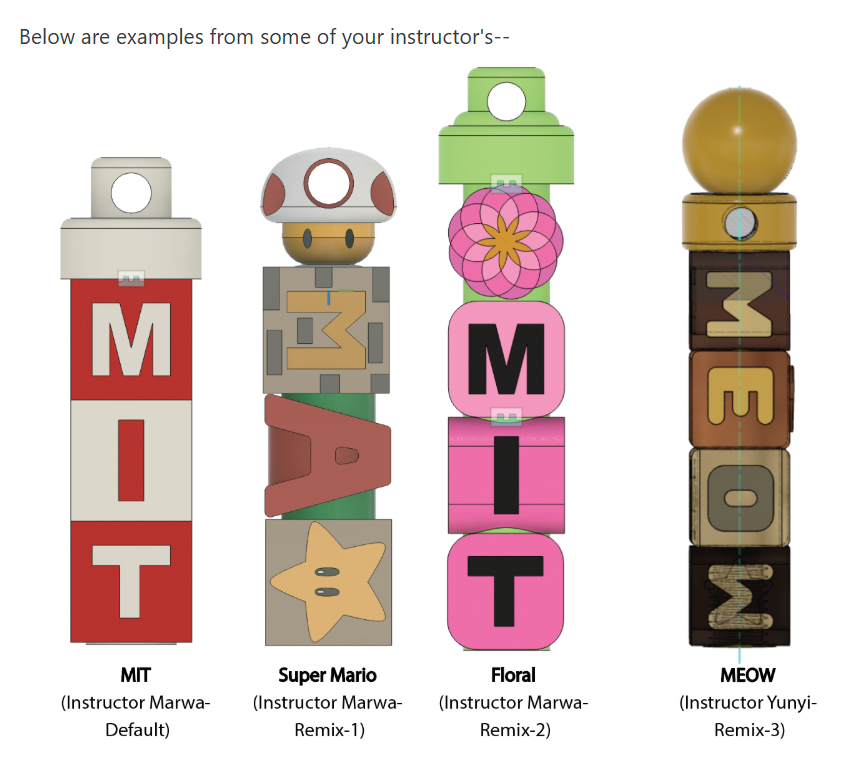
Part 10: Creating Blocks (🚨REMIX🚨)
- Create blocks as new components (even if video shows bodies)
- Follow Design Constraints: Block Size: 12mm, Hole Size: 9.6mm
- Minimum Feature Size: 2x Nozzle Diameter
- Angles: < 50° for minimal support
Checkoff 6
Part 11 [OPTIONAL]: Sweeping for Aesthetic Corners
- Construct a plane along the circular hole path
- Sketch a circle with ~2mm diameter
- Use Create → Sweep, set profile and path
- Choose operation as Cut
Checkoff 7
Part 12: Assemblies in CAD
- Convert blocks to components
- Create Assembly: Assemble → Joint, Shaft as Component 1, Block as Component 2
- Joint type: Simple & Revolute
- Add remaining blocks with joint
Checkoff 8
Part 13: Assigning Materials & Colors
- Right-click component → Appearance
- Drag material to body or specific faces
- Custom color: right-click → Edit → choose color
Checkoff 9
Part 14: Rendering
- Switch to Render workspace
- Adjust Scene Settings (lighting/background)
- Render and save image
- Upload render to Lab Drive as "LastName_FirstName_keychain"
Checkoff 10
Part 15: Export STL Files & Share Fusion Project
- Export each component as STL ("LastName_FirstName_Number")
- Upload STL files to Drive folder
- Share Fusion 360 project link with instructors
Checkoff 11: let your instructors know!